n8n AI Agent Tutorial: Build Your First Automation
Step-by-step tutorial to build your first AI agent in n8n. Learn how to connect LLMs, add tools, configure memory, and deploy a working automation - no coding required.
10+ years shipping production ML across TensorFlow, PyTorch, AWS, and GCP. Ships every A8gent agent before it becomes a lesson. GitHub
- n8n's AI Agent node lets you build autonomous AI agents with tool-calling, memory, and branching logic - all through a visual drag-and-drop interface without writing code.
- The core architecture of an n8n AI agent consists of four components: a trigger (how the agent is invoked), an LLM (the reasoning engine), tools (actions the agent can take), and memory (conversation context).
- You can connect your AI agent to 400+ integrations including Google Sheets, Slack, email, databases, and HTTP APIs - giving the agent real-world capabilities beyond just generating text.
- n8n's self-hosted option means your data never leaves your infrastructure, making it suitable for enterprise use cases where data privacy and compliance are non-negotiable.
- Start with a simple single-tool agent and progressively add complexity - this iterative approach prevents the common mistake of over-engineering your first AI workflow.
What Is an n8n AI Agent and Why Should You Care?
An AI agent is software that uses a large language model (LLM) to reason about tasks, decide which actions to take, and execute those actions autonomously. Unlike a simple chatbot that just generates text, an agent can search the web, query databases, send emails, update spreadsheets, and chain multiple actions together to accomplish complex goals. The difference between a chatbot and an agent is the difference between someone who gives advice and someone who actually does the work.
n8n is an open-source workflow automation platform that added first-class AI agent support in 2024. What makes n8n special for AI agents is the combination of a visual workflow builder with deep integration capabilities. You can build an agent that receives a customer question via webhook, searches your knowledge base using vector embeddings, drafts a response using GPT-4 or Claude, and sends the answer back - all configured through drag-and-drop nodes without writing a single line of code.
The practical advantages of building AI agents in n8n versus coding them from scratch are significant. With a framework like LangChain, you need Python or TypeScript expertise, you need to handle error recovery, you need to manage deployment infrastructure, and you need to build monitoring dashboards. With n8n, these concerns are handled by the platform. You focus on the logic of your agent - what it should do and when - while n8n handles execution, retries, logging, and scaling. For teams without dedicated ML engineers, this is transformative.
n8n offers both a cloud-hosted version and a self-hosted option. The self-hosted version is completely free and runs on any server with Docker. This is a major differentiator from platforms like Zapier or Make.com - your data stays on your infrastructure, your API keys never leave your servers, and you have full control over the execution environment. For businesses handling sensitive customer data, healthcare information, or financial records, self-hosting is often a compliance requirement rather than a preference.
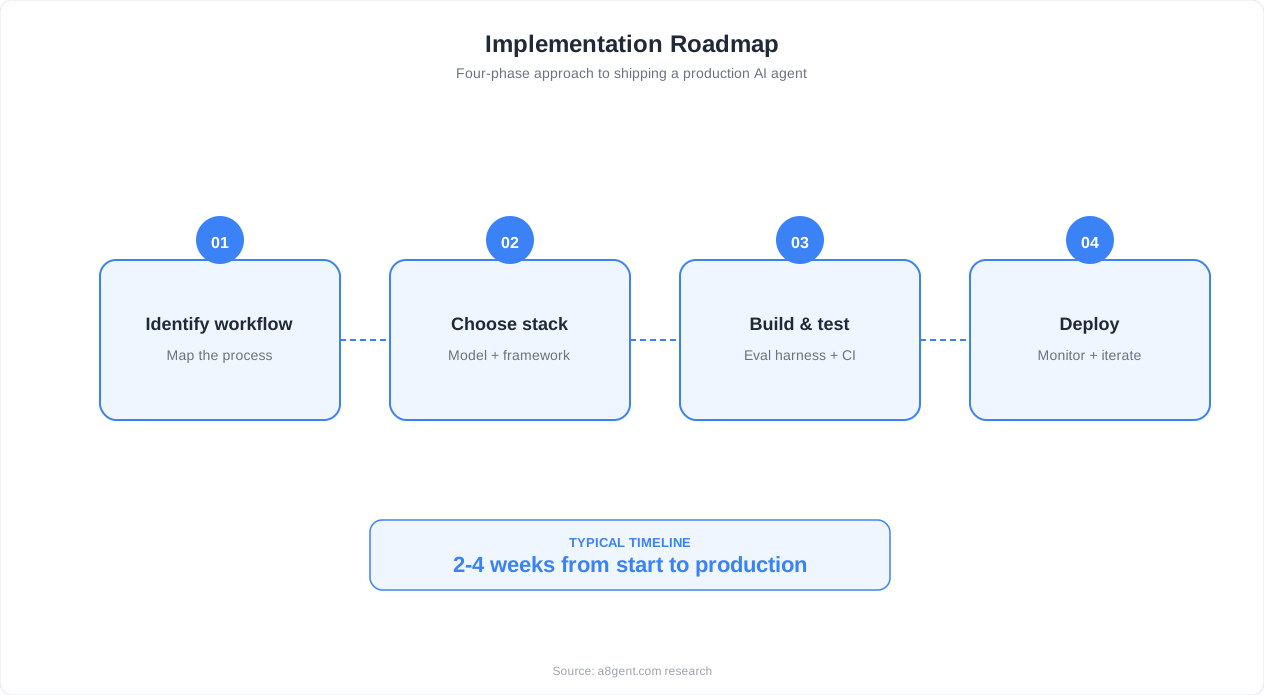
In this tutorial, we will build a complete AI agent from scratch in n8n. By the end, you will have a working agent that can receive questions, use tools to gather information, maintain conversation context with memory, and return intelligent responses. We will start simple and progressively add features, which is the right way to build any automation - start with something that works and iterate. If you are evaluating whether n8n is the right platform for your needs, our n8n vs Make vs AI agents comparison covers the tradeoffs in detail.
Before we start building, make sure you have n8n running. The fastest way is the cloud version at n8n.io - you can sign up for a free trial. If you prefer self-hosting, run docker run -it --rm --name n8n -p 5678:5678 n8nio/n8n and open localhost:5678 in your browser. You will also need an API key from OpenAI, Anthropic, or another LLM provider. Have that ready before proceeding.
Setting Up Your First AI Agent Node in n8n
Open n8n and create a new workflow. The first thing you need is a trigger - this determines how your agent gets activated. For testing purposes, use the Chat Trigger node. Click the plus button, search for "Chat Trigger," and add it to your canvas. This gives you a built-in chat interface for testing your agent without setting up external webhooks. Later, you can swap this for a Webhook trigger, an Email trigger, or a Schedule trigger depending on your use case.
Next, add the AI Agent node. This is the core of your automation. Click the plus button, search for "AI Agent," and connect it to your Chat Trigger. When you open the AI Agent node configuration, you will see several options. The most important settings are the Agent Type and the System Prompt. For your first agent, select "Tools Agent" as the agent type - this gives the LLM the ability to decide which tools to call and when, which is the foundation of agentic behavior.
The system prompt is where you define your agent's personality, capabilities, and constraints. A good system prompt for a beginner agent looks like this: "You are a helpful assistant. When users ask questions, use your available tools to find accurate information before responding. Always cite your sources. If you cannot find the answer, say so honestly rather than guessing." The system prompt is critical - it is the difference between an agent that hallucinates confidently and one that uses tools appropriately and admits uncertainty.
Here is that starter system prompt in full, ready to paste into the AI Agent node's System Message field:
You are a helpful research assistant.

Rules:
- When a user asks a factual question, use your available tools
  to find accurate information before responding.
- Always cite the source of any fact you report.
- If your tools return nothing useful, say "I could not find a
  reliable answer" instead of guessing.
- Keep answers under 150 words unless the user asks for detail.
Now connect an LLM. Click the "Model" input on the AI Agent node and add an OpenAI Chat Model node (or Anthropic, Ollama, or any supported provider). Configure it with your API key and select your model - gpt-4o is a good balance of capability and cost for most agent use cases. If you are on a budget, gpt-4o-mini works well for simpler tasks at a fraction of the cost. The n8n documentation on LLM nodes covers all available providers and their configuration options.
At this point, you have a minimal working agent. Click "Execute Workflow" and type a message in the chat interface. The agent will respond using the LLM but without any tools - it is essentially a chatbot. This is your baseline. In the next sections, we will add tools that give the agent real capabilities, add memory so it remembers conversation context, and configure error handling so the agent fails gracefully. The key principle is to build incrementally: get each layer working before adding the next one.
One important configuration to understand is the Max Iterations setting on the AI Agent node. This controls how many tool-calling loops the agent can perform before being forced to respond. The default is usually 10, which is reasonable for most use cases. Setting this too high risks runaway agents that burn through API credits; setting it too low prevents the agent from completing multi-step tasks. For your first agent, leave it at the default and adjust based on your specific workflow needs.
Adding Tools: Give Your Agent Real-World Capabilities
Tools are what transform a chatbot into an agent. A tool is any action the agent can decide to invoke - searching the web, reading a database, calling an API, or running custom code. In n8n, tools are represented as sub-nodes connected to the AI Agent node's "Tools" input. The agent's LLM receives a description of each available tool and decides which ones to call based on the user's request.
Let us add three essential tools to your agent. First, add a Wikipedia tool. Click the "Tools" input on the AI Agent node, search for "Wikipedia," and add it. This tool lets your agent search Wikipedia for factual information. No configuration needed - it works out of the box. Test it by asking your agent "What is the population of Tokyo?" and watch it call the Wikipedia tool, retrieve the information, and synthesize a response.
Second, add an HTTP Request tool. This is the Swiss Army knife of n8n tools - it lets your agent call any REST API. Add the "HTTP Request Tool" sub-node and configure it with a description like "Use this tool to fetch data from external APIs. Provide the full URL as the parameter." The agent will use this tool whenever it needs to call an API that is not covered by n8n's built-in integrations. For example, you could use it to check weather data, fetch stock prices, or query your own internal APIs.
Here is a tool description written to the same standard, ready to paste into the HTTP Request Tool node's description field:
Use this tool to fetch data from external REST APIs.

When to use:
- The user asks for information not covered by your other tools
  (weather, stock prices, public data lookups).
- You need to call one of the company's internal APIs.

Input format:
- A single JSON object with keys: url (string, required),
  method (string, optional, defaults to GET).
Third, add a Code tool. This lets your agent execute JavaScript or Python code to perform calculations, data transformations, or any custom logic. Add the "Code Tool" sub-node and configure it with a description like "Use this tool to perform calculations or data processing. Write JavaScript code to accomplish the task." This is incredibly powerful - the agent can write and execute code on the fly to answer questions like "What is 15% of $3,450?" or "Convert this CSV data to a summary table."
The quality of your tool descriptions directly impacts agent performance. The LLM uses these descriptions to decide when to call each tool. Vague descriptions like "does stuff with data" lead to poor tool selection. Specific descriptions like "Searches the company knowledge base for product documentation. Use when the user asks about product features, pricing, or technical specifications" help the LLM make accurate decisions. Spend time writing clear, specific tool descriptions - this is one of the highest-leverage optimizations you can make.
You can also add n8n's built-in integrations as tools. The Google Sheets tool lets your agent read from and write to spreadsheets. The Slack tool lets your agent send messages to channels. The Gmail tool lets your agent read and send emails. Each integration needs its own OAuth credentials configured in n8n, which is a one-time setup per service. The n8n AI Agent documentation has a complete list of supported tool nodes and their configuration requirements.
A common mistake is adding too many tools at once. Start with two or three tools and test thoroughly before adding more. Each additional tool increases the cognitive load on the LLM - with twenty tools, the model spends more tokens reasoning about which tool to use and is more likely to select the wrong one. If you need many tools, consider breaking your workflow into multiple specialized agents, each with a focused set of tools, rather than building one agent that tries to do everything.
Configuring Memory for Contextual Conversations
Without memory, your AI agent treats every message as a fresh conversation. Ask it "What is the capital of France?" and it answers correctly. Follow up with "What is the population there?" and it has no idea what "there" refers to. Memory solves this by maintaining conversation history so the agent understands context across multiple exchanges.
n8n provides several memory options through the "Memory" input on the AI Agent node. The simplest is the Window Buffer Memory. Add this sub-node and configure the context window length - this determines how many previous message pairs (user message + agent response) to include in each LLM call. A window of 10 means the agent remembers the last 10 exchanges. This works well for short conversations but has a limitation: once the window slides past a message, that context is permanently lost.
Setting the session ID from your trigger's payload typically looks like this:
Chat Trigger (built-in session):  automatic, no expression needed
Webhook trigger (WhatsApp, etc):  {{ $json.from }}
Webhook trigger (web chat widget): {{ $json.sessionId }}
For more sophisticated memory, use the Vector Store Memory. This stores conversation history in a vector database (like Pinecone, Qdrant, or Supabase) and retrieves relevant past messages using semantic search. Instead of remembering the last N messages, it remembers the most relevant messages regardless of when they occurred. This is powerful for agents that have long-running relationships with users - a customer support agent can recall that this specific customer had a billing issue three weeks ago, even if dozens of conversations have happened since.
The practical configuration depends on your use case. For a simple Q&A agent that handles independent questions, Window Buffer Memory with a context of 5-10 is sufficient and keeps token costs low. For a customer service agent that needs to track ongoing issues, Vector Store Memory with a good embedding model is worth the additional setup. For a scheduling assistant that needs to remember user preferences across sessions, you might combine both - window memory for the current conversation and vector memory for long-term preferences.
One critical detail: memory is stored per session ID. When you use the Chat Trigger, n8n automatically manages session IDs. But when you use a Webhook trigger (for example, receiving messages from a WhatsApp bot), you need to explicitly set the session ID. Typically, you use the user's phone number or user ID as the session key. This ensures that each user gets their own conversation history and agent A's memory does not leak into agent B's responses. The memory node documentation explains session management in detail.
Token cost is a real consideration with memory. Every stored message gets included in the LLM prompt, consuming tokens. A window of 20 messages with long responses can easily add 4,000-8,000 tokens per request, which at GPT-4o pricing adds up quickly at scale. Monitor your token usage in the n8n execution logs and adjust your memory window accordingly. A practical optimization is to use a summarization step - periodically summarize older messages into a compact summary and replace the full messages with the summary. This preserves context while keeping token costs manageable. If cost optimization is a priority for your business, our guide on AI automation costs for small businesses covers budgeting strategies in depth.
Error Handling and Testing Your Agent
AI agents fail. LLM APIs have rate limits and outages. Tools return unexpected data. The agent misinterprets a request and enters an infinite loop. Robust error handling is what separates a demo from a production-ready automation. n8n provides several mechanisms for handling failures gracefully.
The first line of defense is the Error Trigger node. Add this to your workflow and connect it to an error-handling sub-workflow. When any node in your main workflow fails, the Error Trigger fires with details about what went wrong - the node name, error message, execution ID, and input data. You can use this to send yourself a Slack notification, log the error to a database, or trigger a fallback workflow. At minimum, set up error notifications so you know when your agent is failing.
For tool-specific errors, use n8n's retry mechanism. On any node, you can configure retry behavior - how many times to retry on failure, the wait time between retries, and whether to use exponential backoff. For LLM API calls, configure 2-3 retries with exponential backoff starting at 1 second. This handles transient API errors (rate limits, temporary outages) without manual intervention. Do not retry indefinitely - if a call fails three times, something is genuinely wrong and you should route to a fallback.
Testing your agent requires a different approach than testing traditional automation. With a deterministic workflow, you can predict the exact output for any input. With an AI agent, the LLM introduces non-determinism - the same input might produce slightly different tool calls or response phrasings. Focus your testing on three areas: tool selection accuracy (does the agent call the right tool for each type of question?), response quality (are the answers accurate and helpful?), and edge case handling (what happens with ambiguous inputs, empty tool responses, or adversarial prompts?).
Create a test suite of 20-30 representative queries covering your main use cases. Run each query through the agent and evaluate the results. Pay special attention to queries that should trigger specific tools - if your agent has a "check order status" tool but keeps using the general web search tool for order inquiries, your tool description needs improvement. n8n's execution log is invaluable here - it shows you exactly which nodes fired, what data flowed between them, and where things went wrong.
A common testing pitfall is only testing the happy path. Deliberately test failure scenarios: What happens when the user sends an empty message? What if the Wikipedia API is down? What if the user asks the agent to do something outside its capabilities? A well-configured agent should handle these gracefully - acknowledging the limitation, suggesting alternatives, or routing to a human. Add explicit instructions in your system prompt for handling these cases: "If you cannot find the information using your tools, tell the user you were unable to find an answer and suggest they contact support at [email protected]."
Finally, monitor your agent's performance in production. Track key metrics: average response time, tool usage distribution, error rate by tool, and user satisfaction (if you collect feedback). n8n's execution history provides raw data for these metrics. For more advanced monitoring, pipe execution data to a dashboard using n8n's own automation - create a workflow that runs daily, queries the execution history API, computes key metrics, and posts a summary to your team's Slack channel. This kind of meta-automation is where n8n really shines.
Deploying Your n8n AI Agent to Production
You have a working agent in the n8n editor. Now you need to make it available to real users. Deployment depends on how users will interact with your agent - through an API, a chat widget, a messaging platform, or a scheduled workflow.
For API access, replace the Chat Trigger with a Webhook node. Configure it with a path like /api/agent and set the HTTP method to POST. The webhook accepts JSON payloads with the user's message and session ID. Your agent processes the request and the final node returns the response via the Respond to Webhook node. This gives you a REST API endpoint that any application can call - your website, mobile app, or another automation platform. The webhook URL is available immediately after you activate the workflow.
A minimal request to that webhook, and the shape the AI Agent node expects to receive, looks like this:
{
  "message": "What is the status of order 48213?",
  "sessionId": "user-9f21"
}
For chat widget integration, n8n provides an embeddable chat widget that connects directly to your Chat Trigger workflow. You can embed this on your website with a simple script tag. The widget handles the conversation UI, session management, and WebSocket communication with your n8n instance. This is the fastest path to having a customer-facing AI agent on your website. For customization beyond what the built-in widget offers, use the webhook approach and build your own chat interface with any frontend framework.
For messaging platforms like Slack, WhatsApp, or Telegram, use the platform-specific trigger nodes. n8n has dedicated nodes for each platform that handle webhook verification, message parsing, and response formatting. We cover the WhatsApp integration in detail in our WhatsApp AI Agent with n8n tutorial. The pattern is similar for all platforms: platform trigger receives the message, AI Agent processes it, and a platform-specific output node sends the response back.
Production considerations that beginners often overlook: Rate limiting - if your agent is public-facing, add rate limiting to prevent abuse. Use n8n's built-in webhook authentication or add a middleware check at the start of your workflow. Timeout configuration - LLM calls can take 5-30 seconds depending on the model and complexity. Configure your webhook timeout accordingly and consider sending an immediate "processing" response for long-running requests. Logging - store every agent interaction (input, tool calls, output) in a database for debugging and analytics. A simple Google Sheets append or database insert at the end of your workflow captures this data.
For self-hosted deployments, ensure your n8n instance has adequate resources. AI agent workflows are more memory-intensive than traditional automations because they hold conversation context in memory during execution. A minimum of 2GB RAM is recommended for light agent usage; 4-8GB for production workloads with concurrent users. Use Docker Compose with proper resource limits and health checks. The n8n hosting documentation provides reference configurations for various deployment sizes.
Finally, plan for iteration. Your first deployed agent will not be perfect. Monitor user interactions, identify common failure patterns, and refine your system prompt, tool descriptions, and error handling based on real-world usage. The agents that perform best in production are the ones that have been through multiple cycles of deploy-monitor-improve. Set up a weekly review cadence where you examine the worst-performing interactions and make targeted improvements. This ongoing refinement is what transforms a basic AI agent into a genuinely useful automation.
Next Steps: Advanced n8n AI Agent Patterns
You now have a functional AI agent running in n8n. Here are the patterns to explore next as you move from beginner to intermediate agent builder.
Multi-agent workflows are the natural evolution of single-agent systems. Instead of one agent handling everything, create specialized agents that focus on specific domains - one for customer support, one for data analysis, one for content generation - and orchestrate them with a routing agent that directs requests to the appropriate specialist. In n8n, this means creating separate workflows for each agent and using the Execute Workflow node to call them from the router. This pattern scales better because each agent has a focused set of tools and a tailored system prompt, leading to higher accuracy.
RAG (Retrieval-Augmented Generation) dramatically improves agent accuracy by grounding responses in your actual data. Instead of relying solely on the LLM's training data, a RAG-enabled agent searches your documents, knowledge base, or database before responding. n8n supports RAG through the Vector Store tool nodes - connect a Pinecone, Qdrant, or Supabase vector store, index your documents, and the agent will automatically search them when relevant. This is the pattern behind every effective customer support agent - it can only answer questions accurately if it has access to your actual product documentation and support history.
Human-in-the-loop adds approval steps for high-risk actions. Your agent drafts a response or proposes an action, but instead of executing immediately, it sends the proposal to a human for approval via Slack, email, or a custom dashboard. In n8n, implement this with a Wait node that pauses execution until a webhook callback is received. The agent drafts the action, sends it for approval, the workflow pauses, and when the human approves (by clicking a button that calls the resume webhook), execution continues. This is essential for agents that handle financial transactions, send customer communications, or modify critical data.
Scheduled agents run proactively rather than reactively. Instead of waiting for user input, a scheduled agent activates on a cron schedule and performs tasks autonomously - checking for anomalies in your data, generating daily reports, cleaning up stale records, or monitoring competitor pricing. Use the Schedule Trigger node to activate the workflow on your desired cadence. This is where AI agents deliver the most value with the least user friction - the automation runs in the background and only surfaces results when something needs attention.
Conditional tool access lets you control which tools are available based on context. For example, a customer-facing agent might have read-only access to your database during normal hours but no database access at all outside business hours. Or an agent might only have permission to issue refunds under $100 automatically but must escalate larger refunds. Implement this with n8n's IF node before the AI Agent node - check conditions and route to different AI Agent configurations with different tool sets. This provides a layer of safety that prevents agents from taking inappropriate actions in unexpected contexts.
The n8n community is one of the strongest resources for learning advanced patterns. The n8n community forum has hundreds of shared workflow templates, many focused on AI agents. The official n8n Advanced AI documentation covers the technical details of every AI node. And if you want structured guidance on building production-grade AI agents, our complete guide to building AI agents with n8n covers advanced architecture patterns, scaling strategies, and real-world case studies that go beyond what we covered in this beginner tutorial.
Ready-made starting points: our 10 deployable n8n agent templates, plus channel-specific builds for WhatsApp and Telegram.
FAQ
Do I need coding experience to build an AI agent in n8n?
No. n8n's visual workflow builder lets you create AI agents entirely through drag-and-drop. You configure nodes, connect them, and set parameters - no code required. However, basic understanding of APIs and data flow is helpful for debugging and advanced configurations.
How much does it cost to run an AI agent in n8n?
n8n itself is free if self-hosted. Cloud pricing starts at $20/month. The main cost is LLM API usage - a typical agent using GPT-4o costs $0.01-0.05 per interaction depending on conversation length and tool calls. At 1,000 interactions per month, expect $10-50 in API costs.
Can I use Claude or open-source models instead of GPT-4?
Yes. n8n supports OpenAI, Anthropic Claude, Google Gemini, Ollama (for local models), and many other providers. You can swap models by changing the LLM sub-node on the AI Agent without modifying any other part of your workflow.
How do I connect my AI agent to WhatsApp or Slack?
Replace the Chat Trigger with a platform-specific trigger node (WhatsApp Business, Slack Trigger, Telegram Trigger). Configure the platform's webhook to point to your n8n instance. The rest of the agent workflow remains the same - only the input and output nodes change.
Is n8n secure enough for production AI agents?
Yes, especially self-hosted. Your data stays on your infrastructure, API keys are stored encrypted, and you control network access. n8n supports SSO, role-based access, and audit logging. For cloud users, n8n is SOC 2 compliant and offers EU data residency options.