How to Automate Your Business with AI Agents (No Coding Required)
Learn how to automate repetitive business tasks using AI agents without writing a single line of code. Step-by-step guide covering Autonoly, Zapier AI, and n8n.
10+ years shipping production ML across TensorFlow, PyTorch, AWS, and GCP. Ships every A8gent agent before it becomes a lesson. GitHub
- You can automate 60-80% of repetitive business tasks without writing any code using modern AI agent platforms.
- Start with a single high-frequency, low-risk task (like email sorting or invoice processing) before scaling to complex workflows.
- Autonoly, Zapier AI, and n8n each offer no-code AI agent builders with different strengths depending on your business size and budget.
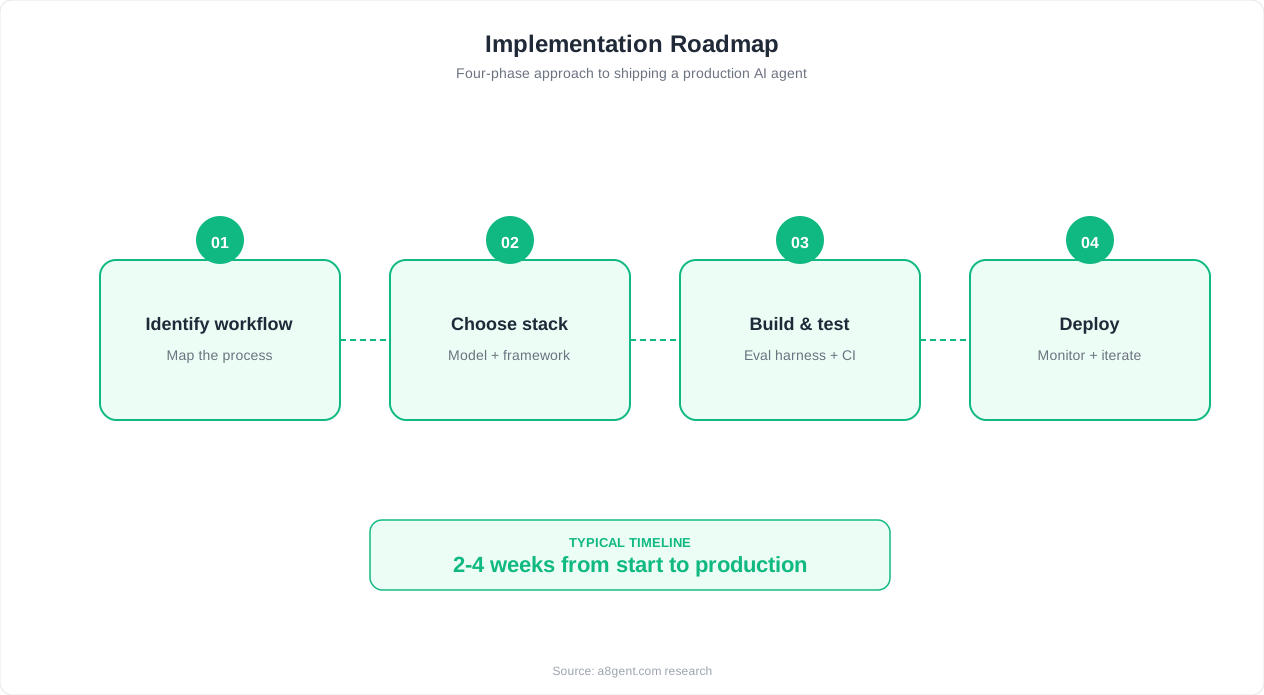
- Most businesses see positive ROI within 2-4 weeks of deploying their first AI agent automation.
- The biggest mistake is trying to automate everything at once instead of building confidence with one workflow first.
You Don't Need a Developer to Automate Your Business
Here's the truth that most automation agencies don't want you to hear: in 2026, you genuinely do not need a developer, a technical co-founder, or a $15,000 consulting engagement to automate your business processes with AI agents. The tools have matured to the point where a business owner who can use a spreadsheet can set up sophisticated AI-powered workflows in an afternoon.
We've watched hundreds of small and mid-size businesses make the leap from manual processes to AI-driven automation over the past year. The pattern is consistent: owners assume they need technical expertise, delay for months (sometimes years), and then finally try a no-code tool and realize they could have done this ages ago. The average time from sign-up to first working automation? Under 3 hours.
What changed? Three things converged in late 2025 and early 2026. First, AI models got dramatically better at understanding natural language instructions, so you can describe what you want in plain English. Second, platforms like Autonoly, Zapier AI, and n8n built visual interfaces specifically designed for non-technical users. Third, pre-built templates now cover 90%+ of common business workflows out of the box.
This guide walks you through the entire process from choosing your first automation target to scaling across your organization. We'll cover the three most popular no-code AI agent platforms with step-by-step instructions, show you exactly where businesses go wrong, and give you a framework for measuring results. If you're not sure whether AI automation is right for your business, start with our free AI Readiness Assessment to identify your highest-ROI opportunities.
By the end of this guide, you'll have a clear roadmap for deploying your first AI agent without writing a single line of code, without hiring a developer, and without spending more than $50-200/month to start.
Choosing Your First Automation Task
The single most important decision you'll make is what to automate first. Get this right and you'll build momentum. Get it wrong and you'll waste time on something that doesn't deliver visible results, lose confidence, and shelve the whole initiative for another six months.
The ideal first automation task has four characteristics. It's high-frequency (happens daily or multiple times per day). It's low-risk (mistakes won't cost you a client or create a legal problem). It's rule-based (follows a pattern you could explain to a new hire in 10 minutes). And it's time-consuming (takes at least 30 minutes of someone's day).
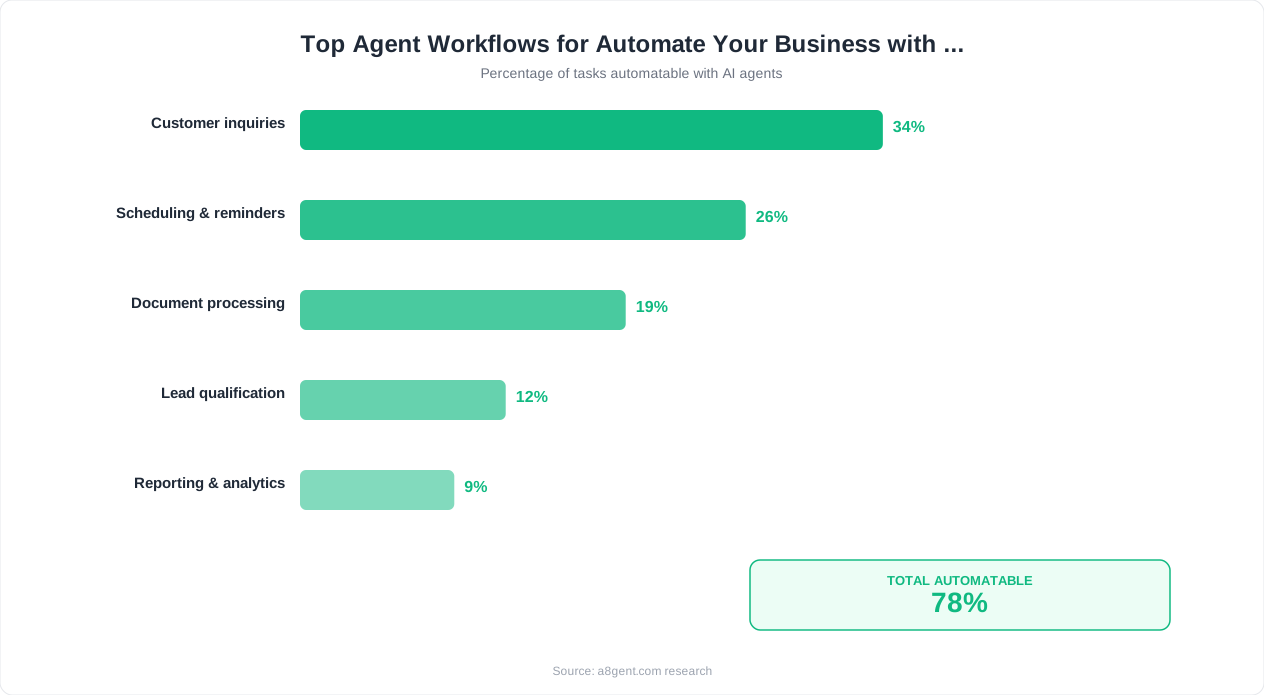
Here are the top 10 first-automation candidates we see across industries:
- Email triage and routing - AI reads incoming emails, categorizes them, and routes to the right team member or folder (saves 45-90 min/day)
- Invoice data extraction - Pull line items, amounts, and vendor info from PDF invoices into your accounting system (saves 20-60 min/day)
- Lead qualification - Score incoming leads based on criteria and auto-respond or route to sales (saves 30-60 min/day)
- Social media scheduling - Generate and schedule posts based on your content calendar (saves 2-4 hours/week)
- Meeting notes and follow-ups - Summarize meetings and draft follow-up emails automatically (saves 15-30 min/meeting)
- Customer inquiry responses - Draft replies to common questions using your knowledge base (saves 1-3 hours/day)
- Report generation - Pull data from multiple sources into formatted weekly/monthly reports (saves 2-5 hours/week)
- Appointment scheduling - AI handles back-and-forth scheduling via email or chat (saves 30-60 min/day)
- Data entry and CRM updates - Automatically log interactions and update records (saves 30-90 min/day)
- Document formatting - Standardize proposals, contracts, or reports to your templates (saves 1-2 hours/day)
Not sure which task will give you the biggest return? Use our ROI Calculator to estimate savings for your specific situation, or take the AI Readiness Assessment to get a personalized recommendation based on your industry and team size.
Once you've identified your first task, document the current process in simple terms: "When X happens, I do Y, then Z." This plain-language description becomes the instruction set for your AI agent.
Setting Up Autonoly: Step-by-Step Guide
Autonoly has emerged as one of the most popular AI agent platforms for small businesses in 2026, thanks to its genuinely intuitive interface and aggressive pricing. Here's how to set up your first automation from scratch.
Step 1: Create your account and workspace. Sign up at Autonoly's website (free tier available with 100 agent runs/month). Create a workspace for your business. You'll be prompted to describe your business in 2-3 sentences-this helps the AI understand context for all future automations.
Step 2: Choose a template or start from scratch. Autonoly offers 200+ pre-built templates organized by industry and function. For email triage, select the "Smart Email Router" template. For invoice processing, choose "Invoice Data Extractor." Templates come pre-configured with best practices, and you can customize every step.
Step 3: Connect your tools. Click "Connections" and authorize the apps your workflow needs. Autonoly supports 500+ integrations including Gmail, Outlook, QuickBooks, HubSpot, Slack, Google Sheets, Notion, and most CRMs. Each connection takes 2-3 clicks via OAuth.
Step 4: Configure your agent's instructions. This is where the magic happens. In the "Agent Brain" panel, describe what you want in plain English. For example: "When a new email arrives in my inbox, read it and categorize it as: Client Request, Invoice, Newsletter, Spam, or Internal. If it's a Client Request, forward it to [email protected] and flag it as urgent. If it's an Invoice, extract the amount and vendor name and add a row to my Google Sheet."
If you want a more structured starting point than a single paragraph, here is a fuller template you can paste into the Agent Brain panel and adapt to your own categories:
AGENT INSTRUCTIONS: Email Triage and Routing

TASK: For every new email that arrives in [INBOX_ADDRESS],
classify it and take the matching action below.

CATEGORIES:
1. Client Request - contains a question, ask, or issue from a
   known client domain
2. Invoice - contains billing terms, an amount, and a vendor
   name, or has a PDF attachment named like an invoice
3. Newsletter - bulk sender, unsubscribe link present
4. Spam - unsolicited sales pitch, no prior relationship
5. Internal - sender is on [COMPANY_DOMAIN]

ACTIONS BY CATEGORY:
- Client Request -> forward to [TEAM_EMAIL], set flag "urgent"
  if subject or body contains "asap", "urgent", or "issue"
- Invoice -> extract vendor_name, amount, due_date -> append
  row to [GOOGLE_SHEET_URL]
- Newsletter -> label "Newsletters", skip inbox
- Spam -> move to Spam folder, do not notify
- Internal -> leave in inbox, no action

CONFIDENCE RULE: If classification confidence is below 80%,
leave the email in the inbox unlabeled and add it to a
"Needs Review" list instead of guessing.

OUTPUT LOG FORMAT per email processed:
{ "email_id": "...", "category": "...", "action_taken": "...",
  "confidence": 0-100 }
Step 5: Set your trigger. Choose what starts the automation. Options include: new email received, scheduled time (every hour, daily at 9am), webhook (triggered by another app), manual button, or new row in a spreadsheet.
Step 6: Test with real data. Autonoly's "Test Run" feature lets you process 5 real items through your workflow without going live. Review the results. Did the AI categorize correctly? Did it extract the right data? Adjust your instructions if needed-usually one round of tweaking is enough.
Step 7: Go live and monitor. Flip the switch to "Active." For the first 48 hours, check the Activity Log daily to catch any edge cases. Autonoly flags low-confidence decisions for your review, so you'll see exactly where the AI wasn't sure.
Pricing: Free tier (100 runs/month), Starter at $29/month (1,000 runs), Business at $79/month (10,000 runs), Enterprise custom pricing. Most small businesses start on Starter and move to Business within 2-3 months as they add more automations.
Need help choosing the right AI stack for your business? Our AI Stack Builder tool can recommend the optimal combination of platforms based on your specific needs and budget.
Setting Up Zapier AI: Step-by-Step Guide
Zapier has been the automation standard for years, and their 2026 AI agent capabilities have transformed it from a simple "if-this-then-that" tool into a genuine AI workflow platform. If you're already using Zapier for basic automations, upgrading to their AI features is seamless.
Step 1: Access the AI Agent Builder. Log into Zapier and navigate to "AI Agents" in the left sidebar (available on Professional plans and above, starting at Free-Free-$49/month). You'll see the new Agent Canvas-a visual builder for AI-powered workflows.
Step 2: Describe your automation in natural language. Zapier's "Start with AI" feature lets you type what you want in plain English. Example: "I want to automatically respond to customer support emails using our FAQ document, and escalate complex issues to my team on Slack." Zapier generates a draft workflow you can review and edit.
Step 3: Review and refine the generated workflow. The AI builds a multi-step Zap with decision points. Review each step: trigger (new email in support inbox), AI action (analyze email against FAQ), branch (simple question vs. complex issue), actions (send reply or post to Slack). Modify any step by clicking on it.
Step 4: Upload knowledge sources. For AI agents that reference your business information, upload documents to the "Knowledge Base" section. PDFs, Google Docs, Notion pages, or website URLs all work. The AI uses this context when making decisions or drafting responses. Upload your FAQ, product catalog, pricing page, or internal procedures.
Step 5: Configure guardrails and approval flows. Set confidence thresholds. For customer-facing responses, we recommend requiring human approval when confidence is below 85%. Zapier lets you route low-confidence items to a Slack channel or email for quick approval before the response goes out.
Here is a system prompt for the AI action step itself, matching the "respond to support emails using our FAQ" example above, with the confidence threshold built in:
SYSTEM PROMPT: Support Email Responder

You draft replies to customer support emails for [COMPANY NAME]
using the uploaded FAQ_KNOWLEDGE_BASE as your only source of
truth. Do not invent policies, prices, or capabilities not in
the knowledge base.

INPUT: incoming_email_subject, incoming_email_body,
customer_email

RULES:
1. If the question is directly answered in FAQ_KNOWLEDGE_BASE,
   draft a reply using that information in your own words -
   do not copy-paste the FAQ verbatim.
2. Rate your own confidence 0-100 on whether your answer fully
   and correctly resolves the question.
3. If confidence < 85, do NOT send the reply. Instead output
   action = "route_for_approval" and route to the Slack
   approval channel with your draft attached.
4. If the question involves a refund, cancellation, complaint,
   or anything not in FAQ_KNOWLEDGE_BASE, output action =
   "escalate" and do not draft a reply - hand off directly to
   a human with the original email attached.
5. Keep replies under 150 words, friendly and direct.

OUTPUT FORMAT (JSON):
{
  "action": "send | route_for_approval | escalate",
  "draft_reply": "string or null",
  "confidence": 0-100,
  "reasoning": "one sentence"
}
Step 6: Test with sample data. Use "Test Zap" to run 3-5 real scenarios through the workflow. Check that responses match what you'd write manually. Verify routing logic works. Adjust the AI's instructions or confidence thresholds based on results.
Step 7: Activate and set up monitoring. Turn on your Zap. Enable "Task History" notifications so you receive a daily digest of what the AI handled. Zapier's built-in analytics show you response accuracy, handling time saved, and tasks completed.
Zapier AI Pricing (2026): Professional at Free-Free-$49/month (750 tasks, basic AI), Team at $99/month (2,000 tasks, full AI agents), Company at $199/month (unlimited AI agents, priority support). Note that "tasks" in Zapier count each action step, so a 5-step Zap processing one item uses 5 tasks.
Best for: Businesses already in the Zapier ecosystem, teams that want enterprise-grade reliability, and workflows that connect many different apps. Zapier's 7,000+ app integrations mean you'll rarely hit a "we don't connect to that" wall.
Compare Zapier against other automation options for your specific use case with our Cost Comparison Tool or explore whether a different platform might save you money using the ROI Calculator.
Setting Up n8n: Step-by-Step Guide
n8n is the open-source powerhouse that's gained massive traction in 2026 among businesses that want full control over their automation infrastructure. While it requires slightly more setup than Autonoly or Zapier, it offers unlimited executions and zero per-task fees-making it dramatically cheaper at scale.
Step 1: Choose your deployment. You have two options. n8n Cloud (hosted for you, starts at $20/month) is the fastest way to start-sign up and you're running in 60 seconds. Self-hosted (free forever) requires a server but gives you unlimited everything. For your first automation, we recommend n8n Cloud to eliminate setup friction.
Step 2: Create a new workflow. Click "New Workflow" in the dashboard. n8n's canvas is a visual node-based editor. Each node is an action-think of it like connecting building blocks. Drag nodes from the left panel onto the canvas and connect them with lines to define your flow.
Step 3: Add your trigger node. Every workflow starts with a trigger. For email processing, add the "Gmail Trigger" or "IMAP Trigger" node. For scheduled tasks, use "Schedule Trigger." For webhook-based triggers (when another app calls your workflow), use "Webhook." Configure the trigger with your credentials.
Step 4: Add AI agent nodes. n8n's AI capabilities come through dedicated nodes. Add an "AI Agent" node and configure it with: your AI model preference (OpenAI GPT-4o, Anthropic Claude, or open-source models via Ollama), system instructions (what the agent should do), and tools the agent can use (other nodes in your workflow). This is where n8n shines-you can give the AI agent access to multiple tools and let it decide which to use.
Step 5: Connect your output nodes. After the AI processes information, add nodes for what should happen with the results. "Google Sheets" to log data, "Slack" to notify your team, "Gmail" to send responses, "HTTP Request" to update your CRM via API. Connect these to the AI Agent node's output.
Here is a concrete field-mapping example for a webhook-triggered workflow - useful when another app (your CRM, a form tool, or a billing system) needs to kick off your n8n automation:
// Example webhook payload received by n8n's "Webhook" trigger node
// (sent when a new lead is created in your CRM)
{
  "event": "lead.created",
  "lead": {
    "id": "crm_30187",
    "name": "Alex Rivera",
    "email": "[email protected]",
    "source": "website_form",
    "message": "Need help automating invoice processing"
  },
  "created_at": "2026-07-09T10:12:00Z"
}

// n8n node chain and field mapping:
// Webhook node
//   -> output: {{$json.lead.name}}, {{$json.lead.email}},
//              {{$json.lead.message}}
//   -> AI Agent node
//        system_instructions: "Read the lead's message and
//          write a 3-sentence personalized reply referencing
//          {{$json.lead.message}}. Address it to
//          {{$json.lead.name}}."
//        output: {{$json.ai_reply}}
//   -> Gmail node
//        to: {{$json.lead.email}}
//        body: {{$json.ai_reply}}
//   -> Google Sheets node
//        row: [{{$json.lead.id}}, {{$json.lead.name}},
//              {{$json.lead.email}}, {{$json.lead.source}},
//              {{$now}}]
//   -> Slack node
//        channel: "#new-leads"
//        message: "New lead replied to: {{$json.lead.name}}"
Step 6: Add error handling. Click the red dot on any node to add an error path. Route failures to a Slack notification or email alert so you know immediately if something breaks. n8n also supports retry logic-configure nodes to retry 3 times with a 1-minute delay before alerting you.
Step 7: Test and activate. Click "Execute Workflow" to run a test. n8n shows you the exact data flowing between each node, making debugging incredibly transparent. Once satisfied, click "Active" to set it live. Monitor the "Executions" tab for the first few days.
n8n Pricing (2026): Self-hosted is completely free (unlimited workflows, unlimited executions). n8n Cloud Starter at $20/month (5 active workflows, 2,500 executions), Pro at $50/month (50 workflows, 10,000 executions), Enterprise custom. The self-hosted option makes n8n the cheapest solution for high-volume businesses.
Best for: Businesses with high automation volume (5,000+ tasks/month), teams that want to self-host for data privacy, and users who want maximum flexibility with AI model choice. n8n's community has shared 1,000+ workflow templates you can import with one click.
Unsure which platform fits your technical comfort level and budget? Take our AI Readiness Assessment for a personalized recommendation, or use the AI Stack Builder to design your complete automation stack.
Common Mistakes (And How to Avoid Them)
After helping hundreds of businesses deploy no-code AI automations, we've seen the same mistakes repeated consistently. Here are the top eight failure patterns and exactly how to avoid each one.
Mistake #1: Automating too many things at once. The excitement of discovering no-code AI tools often leads business owners to try automating 5-10 processes simultaneously in their first week. This invariably leads to half-finished workflows, unclear results, and abandonment. Fix: Automate one process completely. Get it running reliably for 2 weeks. Then add the next. Sequential deployment beats parallel every time.
Mistake #2: Not documenting the current process first. Jumping straight into the automation tool without writing down exactly how the manual process works today. You'll miss edge cases, forget exception handling, and build something incomplete. Fix: Spend 30 minutes writing out every step and decision point of your current process before touching any automation tool.
Mistake #3: Setting and forgetting. Deploying an automation and never checking on it again. AI agents handle 90-95% of cases correctly out of the box, but that 5-10% of edge cases can create problems that compound over time. Fix: Check your automation's activity log daily for the first week, weekly for the first month, then monthly ongoing. Set up alerts for failures.
Mistake #4: Over-engineering the first version. Trying to handle every possible edge case before going live. This leads to analysis paralysis and over-complex workflows that are hard to debug. Fix: Launch with the "80% case." Handle the most common scenarios first. Add edge case handling in version 2 after you've seen real data about what actually comes up.
Mistake #5: Not setting confidence thresholds for customer-facing automations. Letting AI respond to customers without any guardrails. Even the best AI models occasionally produce off-brand or incorrect responses. Fix: For anything customer-facing, require human approval when the AI's confidence is below 80-85%. This catches the problematic 5% without creating a bottleneck for the easy 95%.
Mistake #6: Choosing the wrong platform for your volume. A business processing 50,000 emails/month using Zapier at $0.01/task is paying $500/month when n8n self-hosted could handle it for $0. Conversely, a business with 100 tasks/month doesn't need the complexity of self-hosted n8n. Fix: Use our Cost Comparison Tool to calculate real costs based on your actual volume before committing to a platform.
Mistake #7: Not measuring before and after. Deploying automation without tracking how much time the manual process took. You can't calculate ROI or justify expanding automation without baseline measurements. Fix: Track time spent on the task for one week before automating. Then compare with the ROI Calculator after 30 days live.
Mistake #8: Ignoring your team. Deploying automation that affects team members' workflows without involving them in the design. This creates resistance, workarounds, and ultimately automation failure. Fix: Include affected team members in choosing what to automate and testing the workflow. They know the edge cases you don't.
Measuring Results: How to Track Your Automation ROI
You can't improve what you don't measure, and you can't justify scaling what you haven't proven works. Here's a practical framework for measuring your automation results that doesn't require a data team or expensive analytics tools.
The Four Metrics That Matter:
1. Time Saved (Hours/Week)
Before deploying automation, track how long the manual task takes for one full week. Be honest-include the context-switching time, not just the task itself. After 30 days of automation, compare. Most businesses see 70-90% time reduction on automated tasks. A task that took 2 hours/day manually typically takes 10-15 minutes/day with automation (for review and edge case handling).
2. Cost Saved ($/Month)
Calculate: (Hours saved per month) x (Hourly cost of the person who was doing this) - (Monthly platform cost). Example: 40 hours saved x $35/hour = $1,400 in labor value recovered, minus $79/month platform cost = $1,321/month net savings. Use our ROI Calculator for precise estimates with your numbers.
3. Error Rate (Before vs. After)
Track mistakes in the manual process for a week (missed emails, data entry errors, forgotten follow-ups). Then track AI agent errors for a month. AI agents typically reduce error rates by 60-80% on repetitive tasks because they never get tired, distracted, or forget steps. Document both to show the quality improvement.
4. Throughput (Volume Handled)
How many items can you now process? Manual email triage might handle 50 emails/day with one person. AI-powered triage handles 500+ with the same person just reviewing flagged items. This metric matters most for growing businesses-automation lets you scale without proportionally scaling headcount.
Building Your Measurement Dashboard:
You don't need fancy tools. A simple Google Sheet with four columns (Date, Time Spent on Task, Items Processed, Errors Caught) tracked daily gives you everything you need. Review weekly for the first month. All three platforms (Autonoly, Zapier, n8n) provide built-in execution counts and timing data you can export.
When to Declare Victory:
If after 30 days your automation has: saved more than 5 hours/week, maintained an accuracy rate above 90%, cost less than the equivalent labor, and hasn't created any serious customer issues-it's a success. Time to pick your next automation target.
Reporting to Stakeholders:
For teams or businesses with partners/investors: create a one-page monthly "Automation Impact Report" showing total hours saved, cost savings, error reduction, and a brief list of what's automated vs. what's next. This builds organizational buy-in for scaling your automation investment.
Scaling: From One Automation to a Fully Automated Business
Once your first automation is running reliably, the question becomes: what's next? Here's the scaling framework we recommend, moving from quick wins to transformative business-wide automation.
Phase 1: Quick Wins (Weeks 1-4)
Deploy 2-3 simple, high-frequency automations. Focus on tasks that are purely internal (don't touch customers yet). Examples: email sorting, data entry, internal notifications, report generation. Goal: save 10-15 hours/week across the team and build confidence with the tool.
Phase 2: Customer-Facing Automations (Weeks 5-8)
Now that you trust your platform, add automations that touch customers-but with approval workflows. Examples: drafted customer responses (human-approved before sending), lead scoring and routing, appointment scheduling, FAQ responses via chat. Goal: reduce customer response time by 60-80% while maintaining quality through human review.
Phase 3: Cross-Department Workflows (Months 2-3)
Connect automations across departments. A new lead triggers marketing scoring, sales routing, CRM updates, and Slack notifications in one connected workflow. An invoice triggers accounting entry, payment scheduling, vendor communication, and inventory updates. These multi-step workflows deliver the biggest ROI because they eliminate handoff delays between teams.
Phase 4: Intelligent Decision-Making (Months 3-6)
Deploy AI agents that make judgment calls previously requiring a human. Examples: pricing decisions based on demand signals, content personalization based on user behavior, inventory reordering based on predictive models, customer churn prevention with proactive outreach. These require more sophisticated AI configuration but deliver transformative results.
Platform Scaling Considerations:
- Autonoly: Scales smoothly from Starter to Business tier. Consider Enterprise if you exceed 10,000 runs/month or need SSO/audit logs.
- Zapier: Task-based pricing means costs scale linearly with volume. Switch to Team/Company plan when you need more than 2,000 tasks/month.
- n8n: Self-hosted scales infinitely at zero marginal cost. Upgrade server resources as volume grows (typically $20-50/month on a VPS handles 100,000+ executions/month).
- Make: Another excellent option for visual workflow building with competitive pricing at scale.
When to Consider Hybrid Approaches:
Many businesses end up using multiple platforms. Zapier for its app integrations, n8n for high-volume processing, and Autonoly for AI-heavy decision workflows. Our AI Stack Builder tool helps you design the optimal multi-platform architecture for your specific needs.
Training Your Team:
As you scale, invest in team training. Most platforms offer free academy courses. We also provide structured courses specifically designed for business teams adopting AI automation. The goal is making every team member capable of building and maintaining their own automations-democratizing the capability across your organization.
Ready to map out your full automation roadmap? Start with the AI Readiness Assessment to identify all high-ROI automation opportunities in your business, then use the ROI Calculator to prioritize by expected return.
Tool-shopping next? Start with the best no-code AI agent tools compared.
FAQ
Do I really need zero coding knowledge to automate with AI agents?
Yes. Platforms like Autonoly, Zapier AI, and n8n Cloud are designed for non-technical users. You describe what you want in plain English, connect your apps with OAuth clicks, and the platform handles all the technical complexity. If you can write an email explaining a process, you can build an automation.
How much does no-code AI automation cost per month?
Entry-level plans range from $20-49/month. Autonoly Starter is $29/month (1,000 runs), n8n Cloud Starter is $20/month (2,500 executions), and Zapier Professional is Free-Free-$49/month (750 tasks). Most small businesses spend $50-150/month total and save 40-80 hours/month in labor-a massive ROI.
What's the difference between traditional automation and AI agent automation?
Traditional automation follows rigid if-then rules: if email contains 'invoice,' move to folder. AI agent automation understands context and makes judgment calls: it reads the email, understands it's an invoice even if the word 'invoice' never appears, extracts relevant data, and routes it intelligently. AI handles ambiguity and edge cases that break traditional rule-based automation.
How long does it take to set up my first AI automation?
Most users have a working automation within 1-3 hours. Using a template, you can be live in under 30 minutes. The time investment is: 30 minutes documenting your current process, 30-60 minutes configuring the workflow, 30 minutes testing and refining. After the first one, subsequent automations typically take 30-60 minutes each.
Is my business data safe with these automation platforms?
All three recommended platforms (Autonoly, Zapier, n8n) offer enterprise-grade security including encryption at rest and in transit, SOC 2 compliance, and GDPR adherence. For maximum data privacy, n8n's self-hosted option keeps all data on your own servers. Always review each platform's security documentation and ensure they meet your industry's compliance requirements.
What happens if the AI makes a mistake?
Set up confidence thresholds and approval workflows for critical processes. When the AI is uncertain (below your threshold), it flags the item for human review instead of acting. For the first 1-2 weeks, review all automated actions daily. Error rates typically drop below 5% within the first week as you refine instructions.
Can I automate processes that involve multiple apps and systems?
Absolutely. This is where AI automation excels. A single workflow can connect your email, CRM, accounting software, project management tool, and communication platform. Zapier connects 7,000+ apps, n8n connects 400+, and Autonoly connects 500+. Multi-app workflows are the standard, not the exception.
Should I start with Autonoly, Zapier, or n8n?
Choose Autonoly if you want the simplest setup experience and are processing under 10,000 items/month. Choose Zapier if you need connections to niche apps or are already using Zapier for basic automations. Choose n8n if you want the cheapest at-scale option or need to self-host for data privacy. Our AI Stack Builder tool at /tools/ai-stack-builder gives personalized recommendations based on your specific needs.